Your customer can have your card on their iPhone and still have no working rewards. That's not a design problem. It's a data problem. Wallet holds the pass, your system holds the balance, and most failures happen when those two records don't match.
Sort every problem by who controls it. Some fixes sit with the customer at the counter. Most sit with you, the merchant who issued the pass. Once you know which side owns the fix, adding loyalty cards to Apple Wallet gets much simpler and support calls get shorter.
Table of Contents
- Four Ways a Loyalty Card Reaches Apple Wallet
- How Customers Add a Card in Five Taps
- How Merchants Build a Wallet-Ready Pass
- Keeping Points and Stamps Current on the Pass
- Fixing Missing, Duplicate and Stale Passes
- Test Your Pass Before Launch Day
Four Ways a Loyalty Card Reaches Apple Wallet
A loyalty card reaches Apple Wallet only when your business issues a Wallet-compatible pass. Customers can't convert an ordinary plastic card or a photo of a barcode into a live pass on their own. You provide the pass, they tap Add, and Wallet stores it.
This format isn't experimental. According to the history of Apple Wallet on Wikipedia, Apple introduced Passbook at its Worldwide Developers Conference on June 11, 2012, released it with iOS 6 on September 19, 2012, and renamed it Apple Wallet when iOS 9 launched on September 16, 2015. In 2015, Apple added support for presenting loyalty cards through NFC, and Walgreens was the first major implementation with its Balance Rewards program. That long runway matters because customers already know where Wallet lives and how passes behave.
Delivery routes compared
| Route | What the customer does | Best for | Watch out for |
|---|---|---|---|
| Business link or QR code | Scan, enter phone number, type one-time code, tap Add | Cafes, salons, takeaways | Needs the business's public page or code |
| Email or message attachment | Open the pass file on iPhone and tap Add | Existing customer lists | Each customer must be sent a pass |
| Participating Apple Pay merchant | Accept the pass offered at checkout | Chains with Wallet support | Only works at merchants that offer it |
| AirDrop or barcode from staff | Accept the AirDrop or scan the barcode | In-store sign-up at the counter | A screenshot of a barcode is not always a full pass |
| Issuer app | Download the app, then add the card | Large multi-location programs | Adds an app install that many customers skip |
A screenshot shows a code. It doesn't prove there's an account, a balance, or a redemption record behind it.
For most independent businesses, I would start with the link or QR code at the counter. There's no app to explain while a queue builds, and staff can point to one sign. Email works well when you already have a clean customer list and want to migrate paper card holders. Save the dedicated app for when ordering, booking, or account history needs it, not just to deliver a stamp card. If you're weighing that choice, our guide to choosing an app for rewards cards covers when an app earns its friction and when it doesn't.
How Customers Add a Card in Five Taps
The link route is the one your staff will explain most often, so learn it cold. Here's the full sequence on the customer's phone.
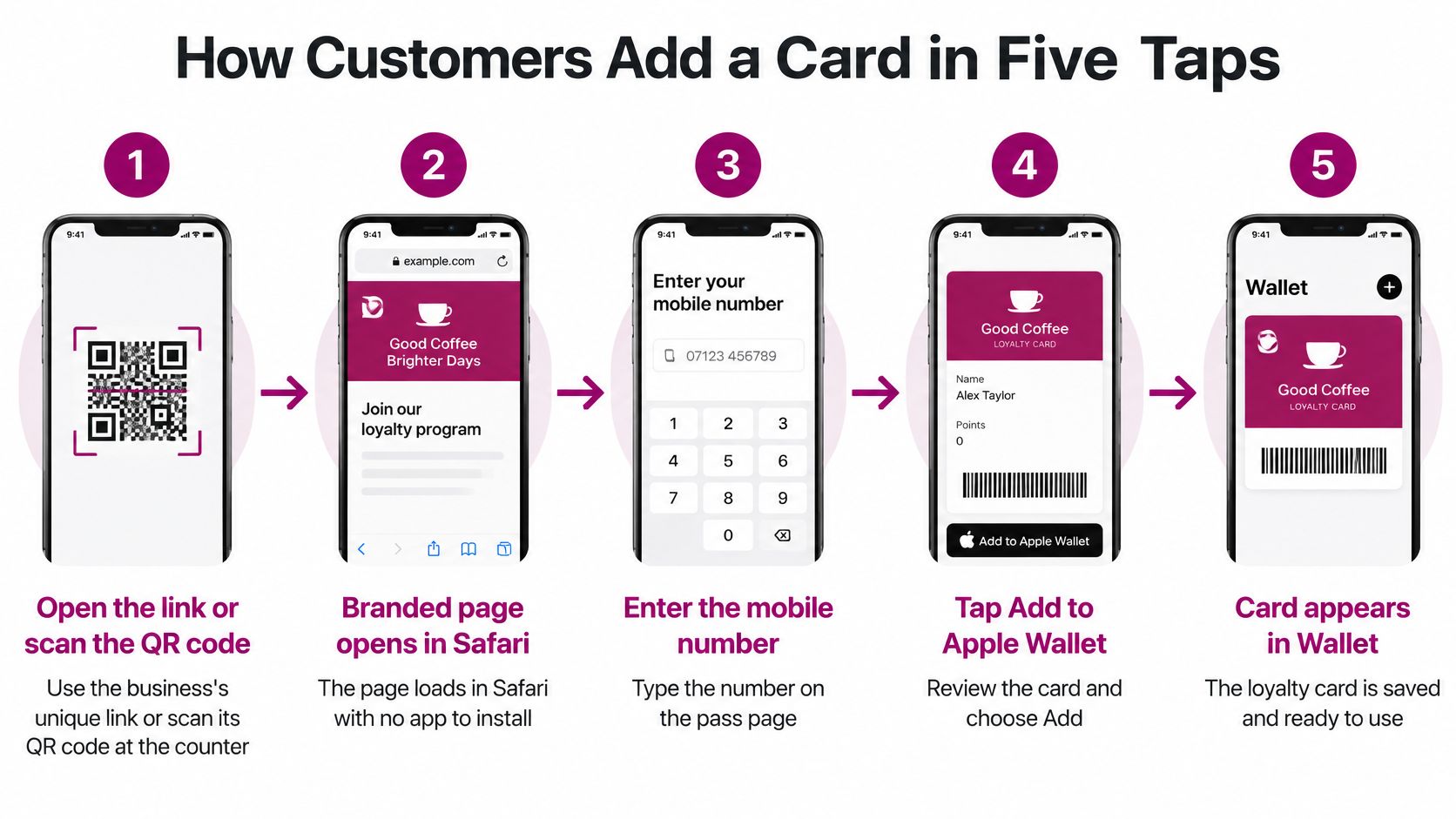
- Open the link or scan the QR code. The customer uses your unique link or scans the code at the counter, and your branded page opens in Safari. Customers do not need to download an app, they visit the business's unique link, verify their phone with an OTP, and add the loyalty card directly to Apple Wallet or Google Wallet.
- Enter the mobile number and one-time code. They type the number they'll use for the program, then enter the OTP sent by text. This step ties the pass to one real account instead of an anonymous card anyone can duplicate.
- Check the card and tap Add to Apple Wallet. They confirm the card name, branding, and current progress look right, then tap Add. If the name or count is wrong here, fix the account before they save it.
- Confirm the pass in Wallet. They open Wallet and check the stamp or points count matches what the sign-up page showed. A mismatch now is a merchant data problem, not a customer mistake.
- Present the code at checkout. On the next visit, they open the pass and hold the code to the scanner so staff can add the visit or redeem the reward.
The email route skips steps one and two. The customer opens the pass file from the Mail attachment and sees the same Add button. The common slip on the web route is skipping the code step. No verification, no pass issued, and the customer leaves thinking they joined.
Sharing adds reach and a little risk. In an analysis of more than 1 million Apple Wallet coupons and loyalty cards reported by InternetRetailing, every pass installed was shared and added to an average of 3.3 additional mobile devices, and loyalty cards generated a 3.9-times sharing rate. That's useful organic spread, but two people holding the same pass also share one balance. Treat shared passes as one account unless your rules say otherwise.
Before launch, add your own pass on your own phone. If you can't do all five taps without help, your customers won't either.
How Merchants Build a Wallet-Ready Pass
Most merchants expect the artwork to be the hard part. It isn't. The build below shows where passes succeed or fail.
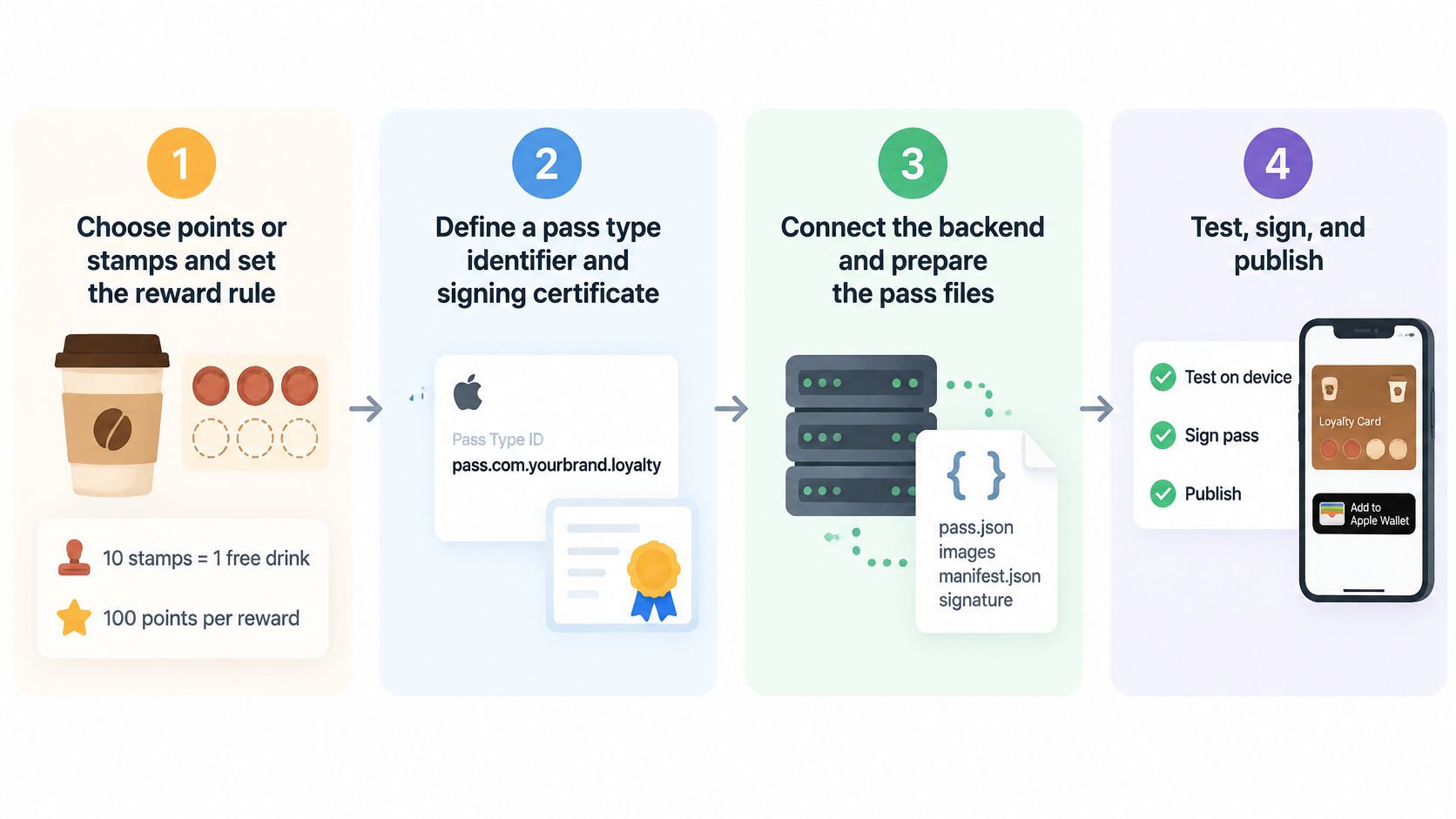
Start by setting the reward rule before any files exist, such as ten stamps for one free drink or a set points threshold per reward. Changing the rule after customers hold cards creates support work, so lock it first. Then work through the technical stages in order.
The build stages
- Define identifiers. Set a pass type identifier and give every issued card a unique serial number. The identifier must match your signing certificate, and the teamIdentifier must match your Apple Developer account.
- Build pass.json. This file holds the card fields, barcode, and text, alongside the required images and localized strings. Good field choices matter for scanning and readability, and our notes on Apple Wallet pass design cover layout decisions that keep codes scannable at arm's length.
- Generate the manifest and signature. Create manifest.json, then produce a PKCS #7 detached signature so the iPhone can verify the package came from you.
- Package and serve the .pkpass file. Bundle everything as a .pkpass file and deliver it with the application/vnd.apple.pkpass MIME type.
Per Apple's documentation on building a pass, the most common implementation failure is a signing or identity mismatch, which causes Wallet to reject the package outright. A beautiful card with a wrong identifier installs for nobody. A plain card with correct signing installs every time.
The short walkthrough below shows the practical flow from a customer's perspective, which helps when you're checking that your build produces something usable.
For a small team, a mobile web download is the lightest distribution path. You skip app store review and App Clip setup, and customers reach the pass from one link. Email attachment also works if you already message customers that way.
First check: Confirm the pass type identifier matches the signing certificate before anything goes public. Design tweaks can wait, a rejected install can't.
Then install the pass on a current iPhone and Apple Watch if your customers use watches. Only place the Add to Apple Wallet button on the public page after that test passes. If managing certificates and signing isn't work you want to own, a provider can handle that layer while you keep control of the reward rules.
Keeping Points and Stamps Current on the Pass
Treat the Wallet card as a presentation layer, not the ledger. Your server holds the authoritative balance. The pass displays a copy of it. When a customer argues at the counter that the phone shows eight stamps and your till shows six, the server record is the one you can audit, reverse, and trust.
Each pass links to one account through a stable serial number. After a visit, you don't issue a new card. You update the same one. According to Apple's Wallet passes documentation, you update a pass by distributing a new version with the same pass identifier and serial number, using device registration and push-notification-triggered refreshes, with manual pull-to-refresh as a fallback. This is also how a well-built program behaves in daily use. The loyalty card updates by itself after every visit, so the customer shouldn't need to do anything.
The update sequence
Run every earn and redemption in this order:
- Authenticate the action: Confirm the customer or cashier request is genuine before anything changes.
- Record the transaction atomically: Write the visit or redemption in one step so a failed scan can't create half a record.
- Recalculate and push: Update the balance, generate the revised pass, and notify registered devices.
- Keep an audit trail: Log the change so reversals and disputed redemptions can be traced.
That order matters when you're checking a rewards card balance during a dispute, because the trail shows what happened and when.
Never store reward value only in the barcode or in static pass data. Screenshots get shared, refreshes get delayed, codes get scanned twice, and customers present passes offline. Every one of those creates a mismatch you can't reconcile if the phone is your only record.
For the code itself, Apple supports QR, Aztec, and PDF417 formats. Pick one your scanner reads reliably, then test it at your actual counter. Check scanner distance under your real lighting, contrast on a dimmed screen, and how fast a redemption completes with a queue behind the customer. A code that works in a quiet office can fail under cafe downlights.
If a balance looks stale, the customer can pull down on the pass to refresh it manually. After any test visit, compare the phone against your system. If they don't match within moments, your update path has a problem, and it's on your side to fix.
Fixing Missing, Duplicate and Stale Passes
Most troubleshooting starts from a wrong assumption, that any card can be added to Wallet if the customer tries hard enough. It can't. Per Apple's iPhone guide on using Wallet passes, passes arrive through an app, email, website, QR code, barcode, AirDrop, or a participating Apple Pay merchant, and if Add to Apple Wallet is missing, the customer must contact the issuing business. Wallet passes are issued or supported by the merchant. They aren't generic cards users convert freely.
That distinction explains most counter confusion. Adding a pass is not the same as connecting it to a reward record. A pass can display a barcode while no account, stamp count, or redemption history sits behind it. Wallet removes the app download. It doesn't remove your integration work.
Symptoms, causes and fixes
| Symptom | Likely cause | Fix |
|---|---|---|
| No Add to Apple Wallet button | Business has not issued a Wallet pass | Ask the business for its pass link or QR code |
| Barcode scans but shows no balance | Barcode is not tied to a stored balance | Ask the business to reissue the pass with its account serial |
| Two identical cards in Wallet | Pass added from both a link and an email | Remove the extra card and keep one for checkout |
| Balance looks outdated | Update not yet pushed or phone offline | Pull down to refresh, check the network, then wait a few minutes |
| Pass rejected at the scanner | Pass expired, revoked or replaced | Business reissues a new pass and the old one stops working |
| Pass fails to install | Signing or identifier mismatch on the issuer side | Business rebuilds and re-signs the package before retrying |
Read the table by owner. Duplicate cards and stale balances are usually customer-side fixes your staff can walk through in under a minute. A missing button, a balance-free barcode, a rejected scan, and an install failure are all merchant-side. Telling a customer to restart their phone when your pass was never issued wastes their time and yours.
If the fix needs your certificate, your server, or your customer records, it's your fix. Don't hand it back to the customer.
To speed up support, ask the customer to send three things:
- Mobile number used at sign-up: This is how you find the right account.
- Date of the last visit: This pinpoints the transaction that didn't land.
- Screenshot of the pass front: This shows the balance the customer believes they have.
Before reissuing, your team needs the serial number, the account phone number, and the reason for replacement. Reissuing without recording why invites duplicate balances later. When you replace a pass, make sure the old one stops working, or two live passes will drift apart and you'll be reconciling them at the counter during your busiest hour.
Test Your Pass Before Launch Day
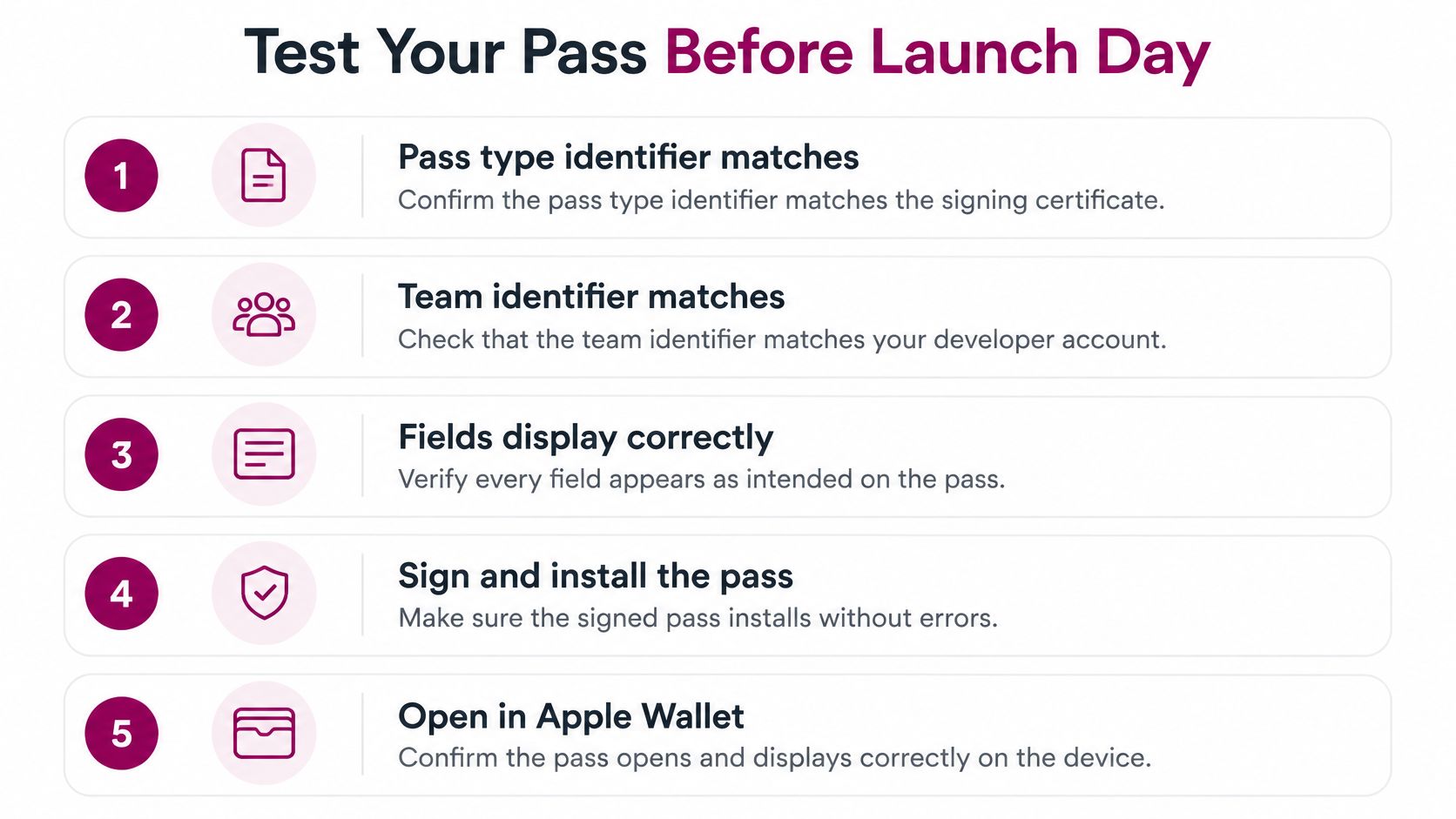
Launch day is the worst time to discover a signing error. Run this checklist with a real phone, at your real counter, before the QR code goes on display.
The pre-launch run
- Identifiers match: Confirm the pass type identifier matches the signing certificate and the team identifier matches your developer account.
- Serials are unique: Issue several test cards and check that no two share a serial number.
- Delivery is correct: Download the pass from your public link and confirm the file arrives as a .pkpass with the right MIME type, not as a broken download.
- Install works: Add the pass on a current iPhone, and on an Apple Watch if your customers present cards from their wrist.
- Reward rule displays right: Check the stamp grid or points count on the pass matches the rule you configured.
Then do the test that predicts launch day. Make one real visit. Scan the code at the counter, add a stamp, and watch the balance change on the phone without touching anything. Redeem a reward the same way. Finally, put the phone in airplane mode, try to present the pass, and see exactly what your staff and customer will see when coverage drops mid-queue. Write down what happens so staff have an answer ready.
One real scan at your counter tells you more than a week of desk testing.
Now the build or buy decision. Building it yourself means owning certificates, signing, the update service, and every future fix. That's reasonable if you have developer time on staff. If you don't, a hosted tool removes that layer. With Loyal Customer, businesses build their loyalty card in a few minutes, and the single plan includes up to 100 customer slots, a custom onboarding page, branded digital loyalty card design, a choice of points program or stamp cards, unlimited offers, discounts and stamp rewards, Apple and Google Wallet integration, QR code scanning at checkout, and email support. A free trial lets you test the full flow before committing.
Either way, the next step is the same. Run the checklist this week with one real phone and one real customer, and don't print the counter sign until that scan works.
Ready to add loyalty cards to Apple Wallet without managing certificates or building your own pass service? Loyal Customer lets you create branded Apple and Google Wallet loyalty cards that customers add from a link with phone verification, no app download required. Start the free trial today, run your first test scan at the counter, and launch knowing every stamp lands.