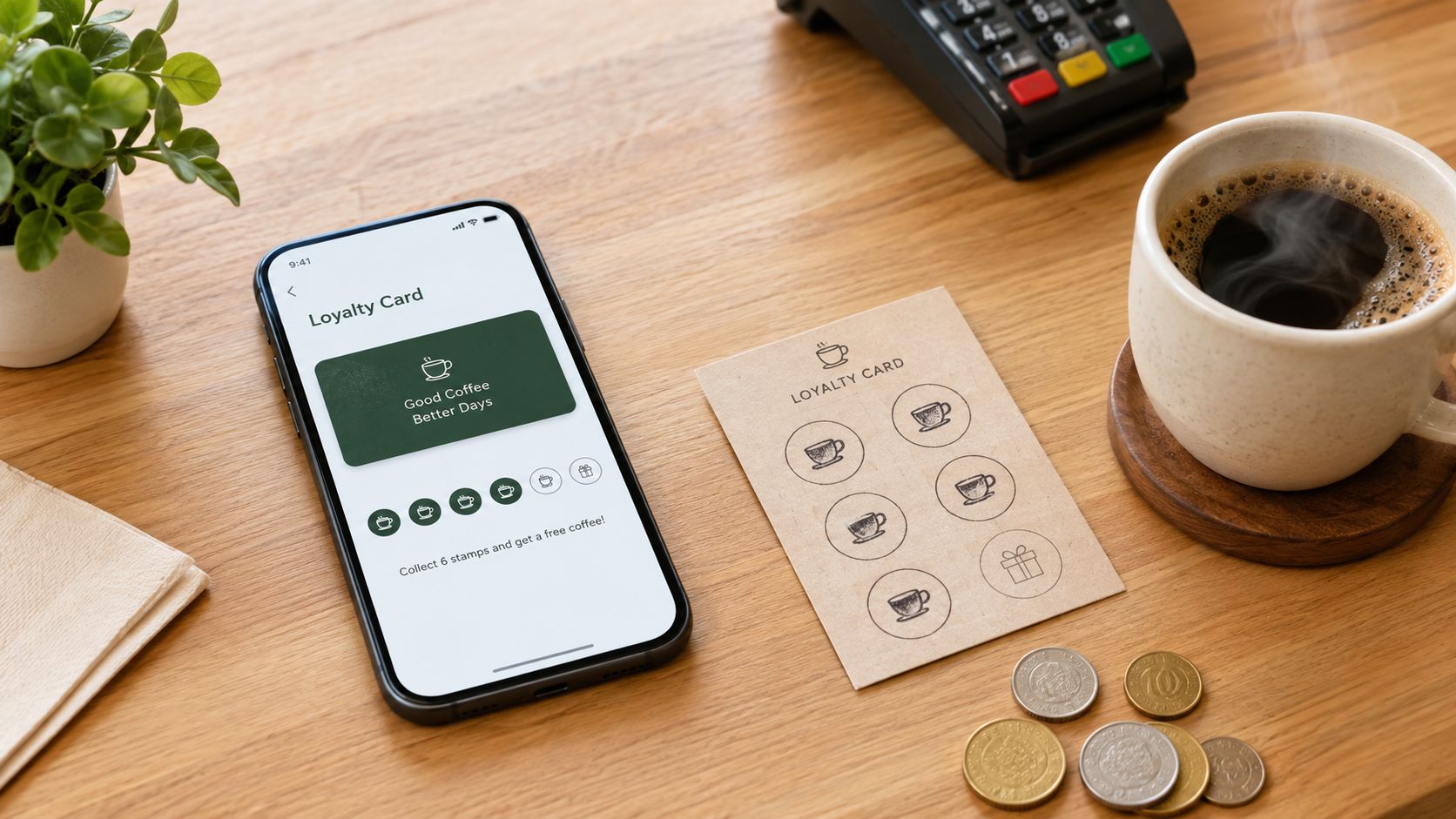
You're standing at the counter during a busy morning rush. A regular customer has left their paper punch card at home, another can't remember how many visits they've earned, and a third doesn't want to download yet another app. You know a digital loyalty card in Apple Wallet could remove much of that friction, but Apple's developer documentation makes the process look like a software project.
The good news is that you don't always need to build the entire system yourself. The right approach depends on whether you need a custom pass infrastructure or only want a branded loyalty card that customers can add, present, and keep updated. The key is understanding what Apple Wallet passes are, how they're issued, and what happens after the first customer taps “Add.”
Table of Contents
- Choosing the Right Pass Creation Path
- Designing the Visual Assets and Layout
- Understanding the Pass Structure and Signing
- Distributing Passes and Configuring Relevance
- Managing Updates and Lifecycle Operations
- Troubleshooting Common Issuance Errors
Choosing the Right Pass Creation Path
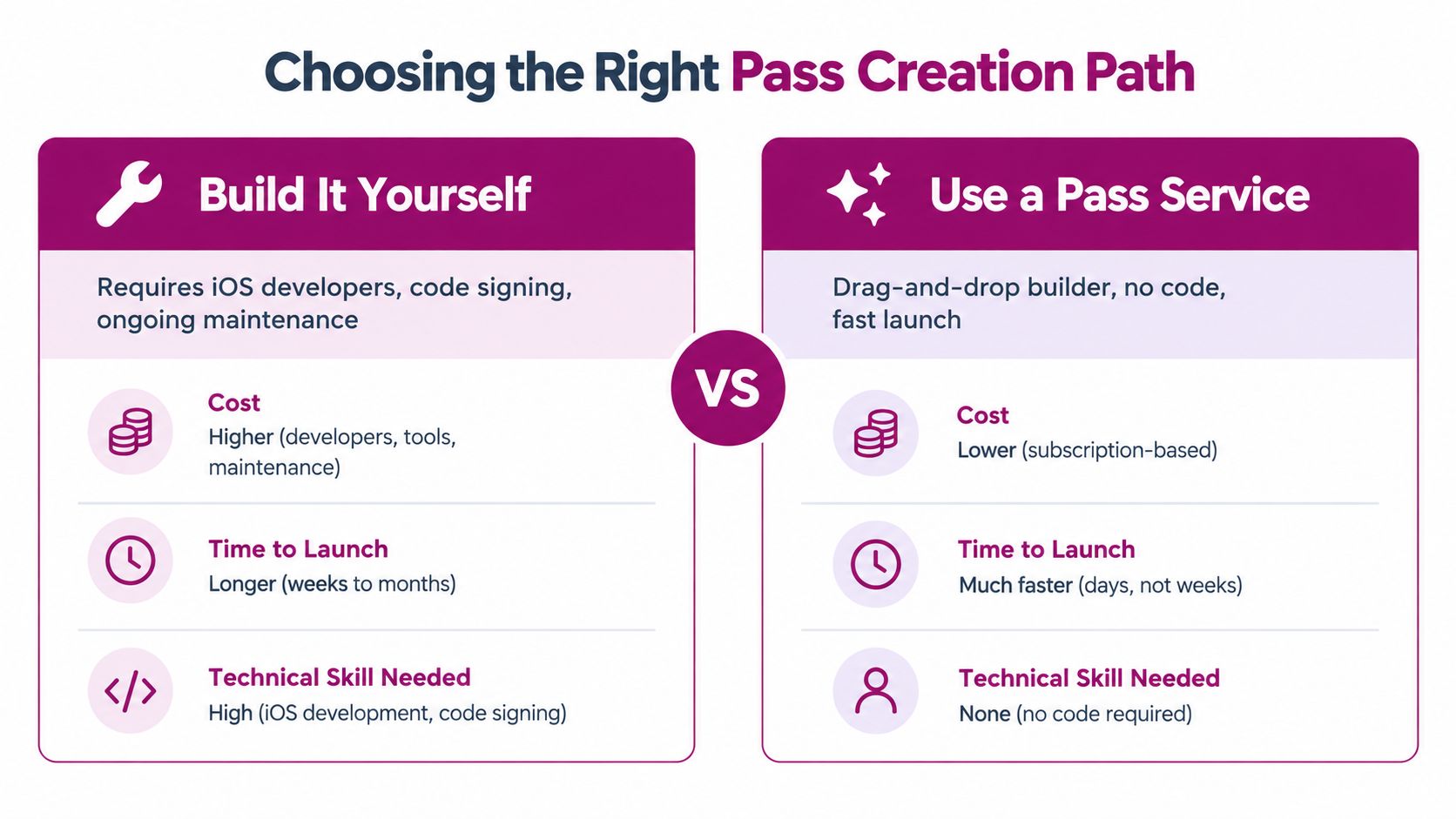
Most small businesses don't need to become Apple Wallet engineers. A cafe, salon, bakery, or independent shop usually needs a reliable way to create a branded pass, connect it to a loyalty balance, and give customers a simple enrollment link. Building the underlying system from scratch can work, but it brings responsibilities that extend well beyond designing the card.
The traditional route uses Apple's PassKit tools and a custom backend. Developers create pass content, generate the required package, sign it with Apple credentials, distribute it, and maintain the update process. This route makes sense when your business needs a custom customer database, advanced integrations, unique redemption rules, or complete control over the pass lifecycle.
The merchant route uses a dedicated wallet-pass or loyalty platform. Instead of assembling every file and managing the issuance workflow internally, you configure the program through a dashboard or template system. The platform handles much of the pass generation and distribution process, while you focus on rewards, branding, and staff procedures. A practical example of this kind of lightweight workflow is described in how a wallet loyalty setup works.
Build or subscribe
| Decision | Build it yourself | Use a pass service |
|---|---|---|
| Technical control | Complete control over fields, integrations, and update logic | Control is limited to the platform's supported features |
| Ongoing work | Your team manages signing, hosting, updates, and troubleshooting | The service manages much of the technical workflow |
| Best fit | Businesses with developers and unusual requirements | Small and mid-sized merchants that need a practical launch |
A no-code tool won't remove every decision. You'll still need to choose the reward model, define how staff validate a pass, prepare brand assets, and explain enrollment to customers. It can, however, prevent a simple digital punch card from turning into a long engineering backlog.
Practical rule: If your main requirement is “customers should add our loyalty card to Apple Wallet and see their current balance,” start with a merchant platform. Choose custom development only when the business process genuinely requires it.
Designing the Visual Assets and Layout
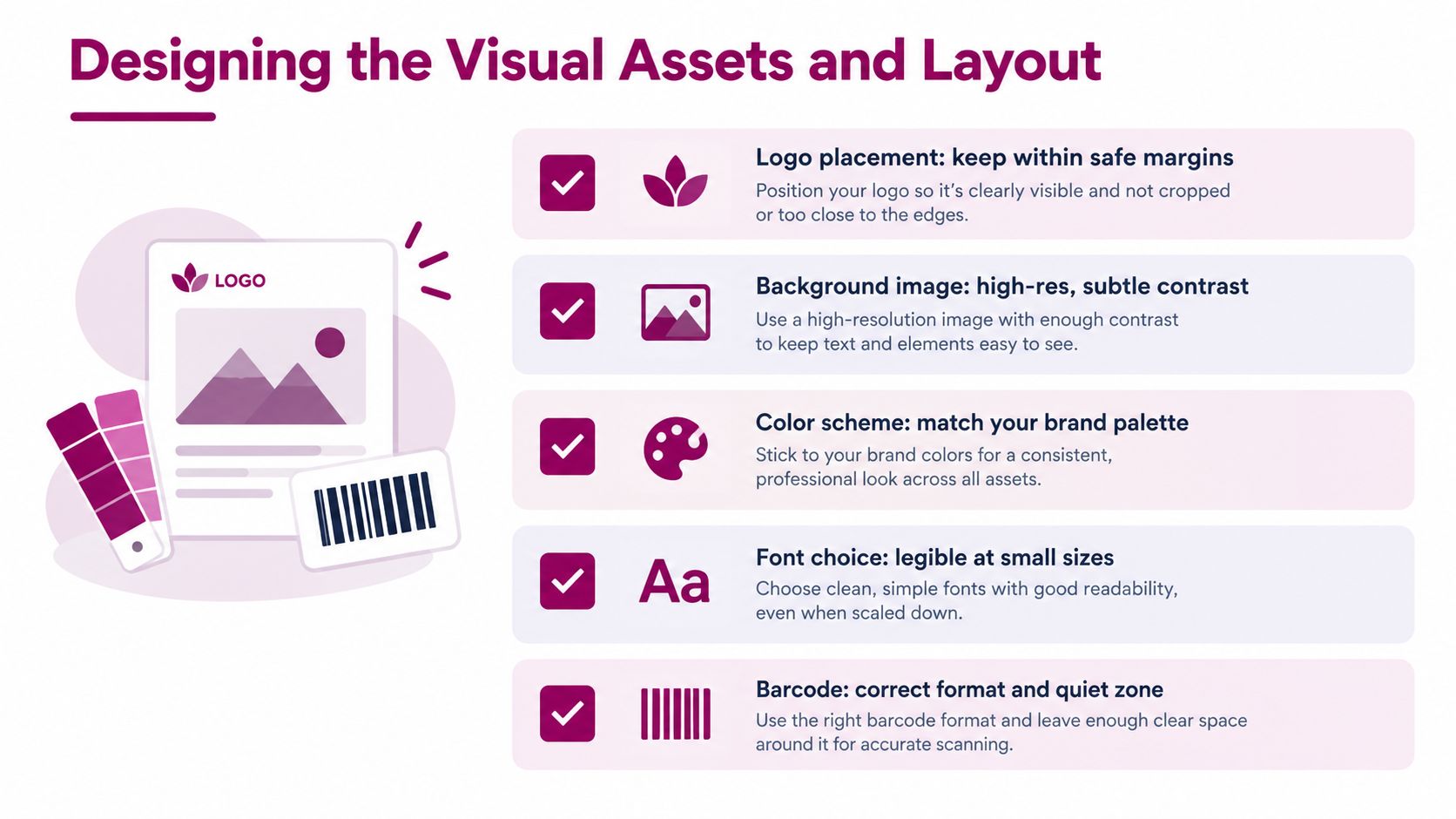
A wallet pass has limited space, so design decisions affect whether customers can identify and use it quickly. Start with a compact asset kit rather than trying to improvise graphics inside the pass builder.
Prepare your brand mark or logo, an icon, any optional strip or background artwork, and a thumbnail-style image if your chosen workflow supports one. Apple's pass format supports required images such as icon.png, and the final package needs assets in the formats accepted by the issuing tool. A platform should tell you which files it accepts and flag problems before issuance.
Don't guess at image dimensions from an old tutorial. Apple's presentation rules and device layouts can change, and a graphic that looks acceptable in a design file may crop badly in Wallet. Use the current requirements in your chosen tool, export at the requested resolution, and test the pass on an actual iPhone rather than relying only on a desktop preview.
Keep the important information obvious
The front of the pass should answer the customer's immediate questions:
- Brand recognition: Use your familiar colors and logo so the pass is identifiable in a crowded Wallet.
- Reward status: Show the current points, stamps, or next reward in a way that can be read at a glance.
- Business identity: Include the shop name and any essential identifier customers may need at checkout.
- Scanning area: Place the barcode or QR code where staff can reach it without making the customer rotate the phone repeatedly.
- Contrast: Use a background and text combination that remains readable under bright shop lighting and on a dim lock screen.
A barcode needs a clean visual area around it. Don't squeeze it against decorative artwork, dense text, or a colored edge. If you're replicating a familiar paper punch-card experience, you can use a digital punch-card template as a starting point, then simplify the layout for mobile use.
Test the complete customer journey. Add the pass, view the front, open the back, scan the code at the register, and check what happens when the balance changes. A beautiful pass that staff can't scan quickly will create more resistance than a plain pass with a clear code and readable reward information.
Understanding the Pass Structure and Signing
You don't need to write JSON to operate a wallet loyalty program, but a basic understanding of the file structure helps when something fails. Apple Wallet doesn't receive a loose collection of images and text. It receives a signed package with a defined internal structure.
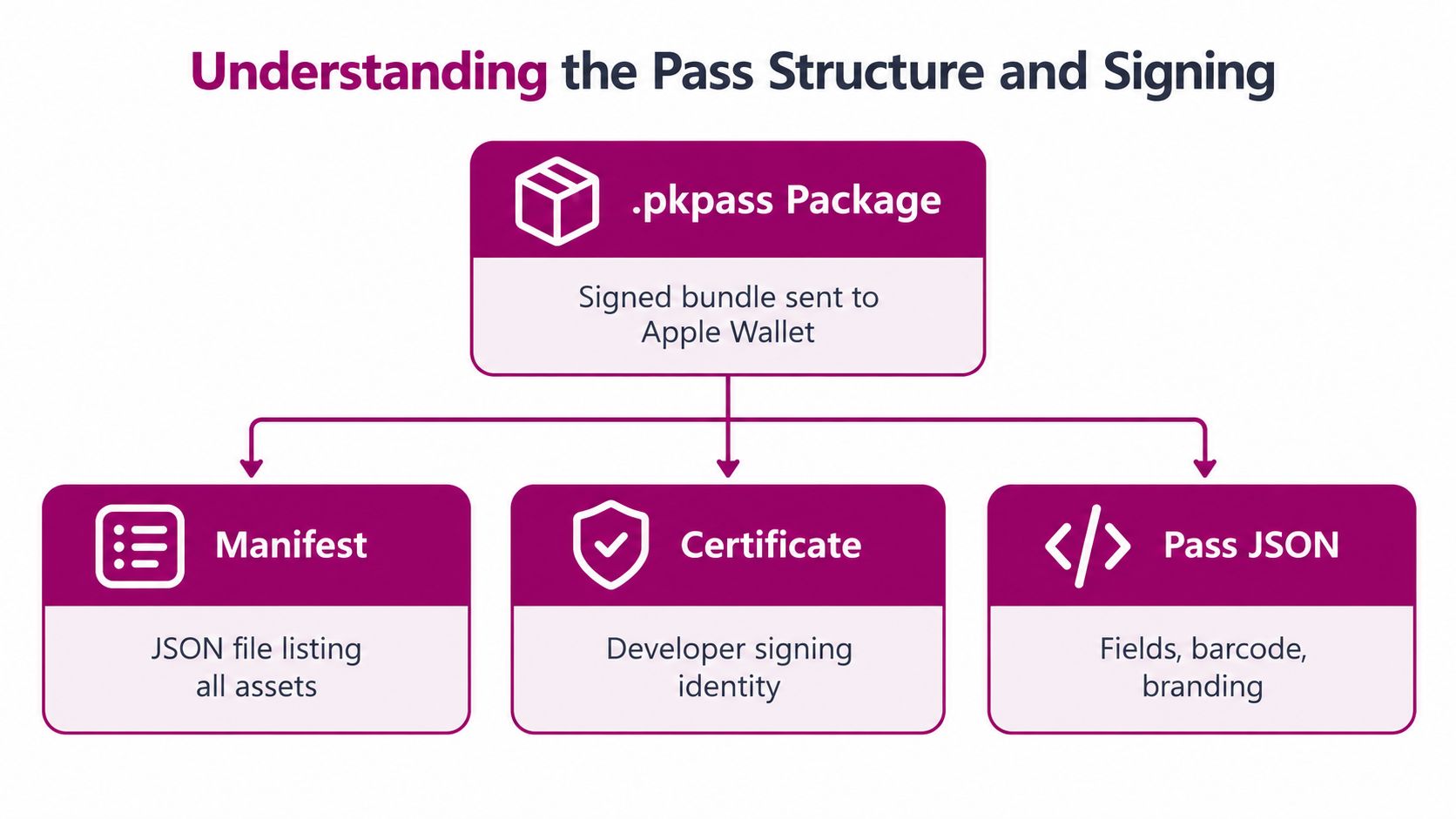
The package is called a .pkpass file. Apple describes it as a ZIP archive containing files such as pass.json, manifest.json, a detached signature, and required images including icon.png. The pass is distributed as a signed bundle, and the manifest records SHA-1 hashes for the files inside it. You can review the official Apple pass-building documentation when working with a developer or evaluating a technical provider.
What each component does
pass.json contains the pass's content and configuration. That includes the visible fields, branding references, barcode information, identifiers, and other values needed to present the loyalty credential.
manifest.json acts as an integrity checklist. It lists the package files and their hashes, so Apple can detect whether a file has changed after the package was prepared. If a graphic, JSON file, or other asset changes without the manifest being regenerated, the package can fail validation.
The detached signature connects the package to the developer signing identity. Signing helps Apple verify that the pass came from an authorized issuer and hasn't been altered in transit. That security layer is why a renamed ZIP file isn't a valid Wallet pass.
The workflow is easier to understand as a chain:
- Define the content in the pass data.
- Add and reference the assets used by the pass.
- Generate the manifest from the final files.
- Sign the manifest and package with the appropriate Apple credentials.
- Distribute the resulting
.pkpassfile through an approved customer flow.
A merchant platform performs these steps behind the scenes. If you build internally, ask your developer where each step runs, which environment signs the pass, and how production credentials are separated from testing credentials.
Distributing Passes and Configuring Relevance
A pass only creates value after customers add it. Put the enrollment prompt where the purchase happens, such as a receipt, checkout screen, email, SMS message, social profile, or counter card. A QR code can be useful for physical locations because the customer can scan it while standing in line, but the destination should be clear and mobile-friendly.
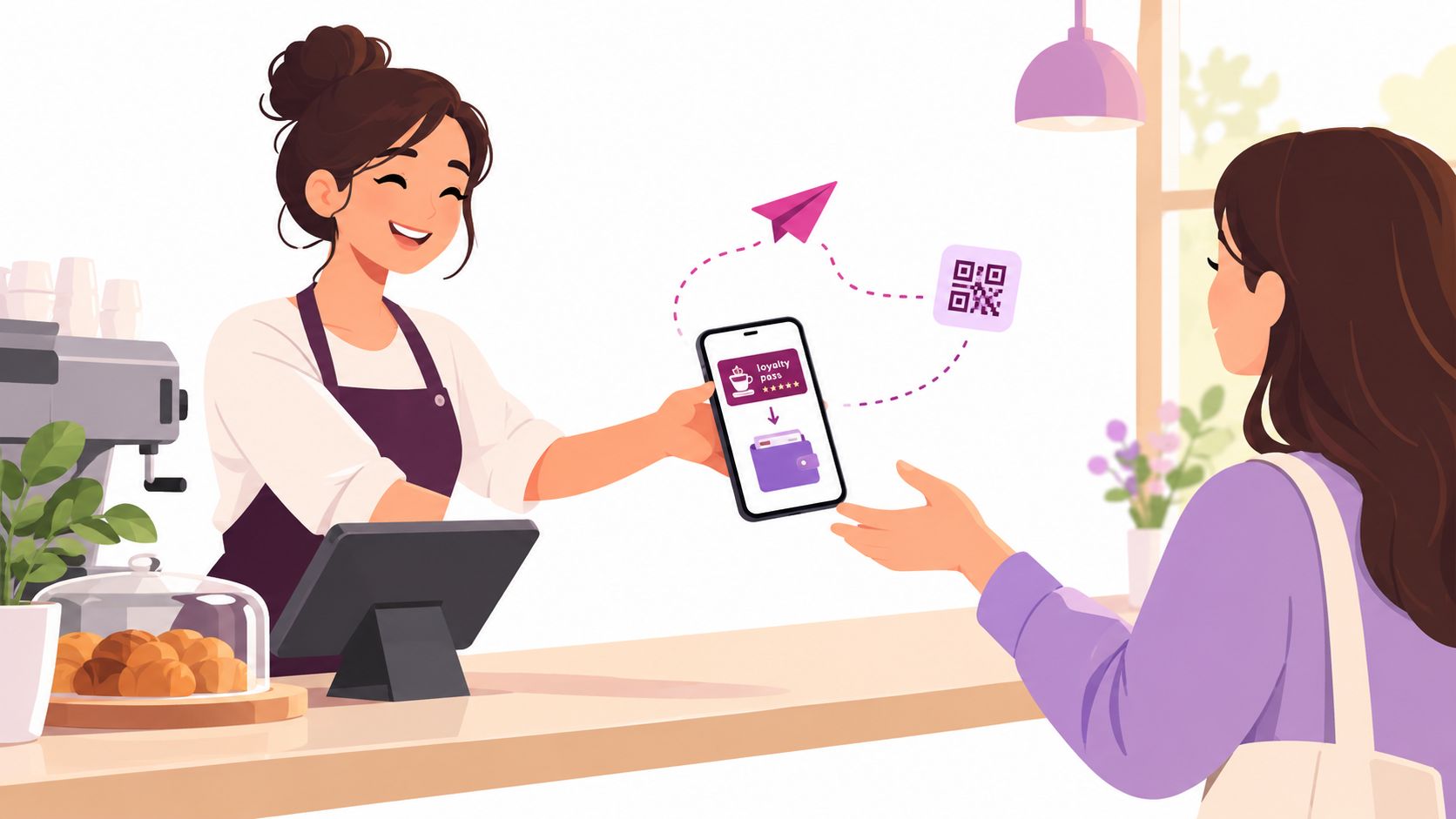
The enrollment message should explain the benefit before asking for an action. “Add our loyalty card to Apple Wallet to keep your stamps with you” is more useful than a button labelled only “Continue.” At the register, train staff to mention the pass after a completed purchase, not during the busiest part of payment.
For printed materials, a QR code generator for loyalty enrollment can help you create a scannable route from a table tent, receipt, window sign, or business card. Use a short call to action beside the code, and test the printed version from the distance customers will typically scan.
Use relevance carefully
Apple Wallet can use pass relevance so a pass may appear on the lock screen when it's relevant to the customer. Relevance can be connected to context such as a location or an appropriate time, but the experience should feel helpful rather than intrusive. Apple's Wallet human interface guidance covers the broader principles for creating, distributing, and updating passes.
A coffee shop might make the pass useful around its store, while a gym could make it prominent around a class or visit. Don't configure every possible trigger just because the system allows it. A customer who repeatedly sees irrelevant prompts may disable notifications or ignore the card.
Measure adoption through practical observations. Ask whether new members know where to find the pass, watch how long redemption takes, and check whether staff can explain the enrollment step without a script. The most effective distribution channel is usually the one that fits naturally into an existing customer interaction.
Managing Updates and Lifecycle Operations
The first pass issuance is only the beginning. A loyalty card becomes useful when the customer can trust the balance shown on it after earning a stamp, receiving points, or redeeming a reward.
Apple recommends using PassKit to create, distribute, and update passes. Updates can be delivered through push notifications, allowing the pass to reflect new information without asking the customer to add a replacement card. The PassKit documentation provides the reference point for the broader creation, distribution, and update workflow.
Keep one customer credential stable
The pass's serial number should remain stable while the customer's record is updated. If the balance changes, update the existing pass server-side rather than issuing a new pass as though the customer were enrolling again. Stable identity prevents duplicate cards and gives the update process a consistent record to target.
That distinction matters at the counter. If a customer earns a stamp and receives a second pass instead of an updated one, they may present the wrong card next time. Staff then have to reconcile competing balances, which undermines confidence in the program.
Your operating checklist should include:
- Balance updates: Confirm that earning and redemption events change the displayed value.
- Message behavior: Decide which changes deserve a customer-facing notification and which should update without alert.
- Brand changes: Test updated logos, colors, and copy before publishing them to existing users.
- Credential ownership: Keep track of which Apple account and Pass Type ID sign production passes.
- Environment separation: Make sure staging passes and production passes don't share identifiers or signing configuration.
Treat certificates and identifiers as operational assets, not as a one-time developer task. Assign ownership, document renewal responsibilities, and test the update path before a seasonal campaign or major promotion. A pass that adds correctly but stops receiving updates still leaves customers with stale loyalty information.
Troubleshooting Common Issuance Errors
When a pass won't add, the cause usually isn't mysterious. Start by identifying where the failure occurs: before download, during Wallet validation, during scanning, or during a later update. Each point suggests a different fix.
If the pass won't add
Check that the file is a genuine .pkpass package and that the issuing workflow generated the manifest after all assets and JSON files were finalized. A changed image or data file with an old manifest can create a hash mismatch. Also verify that the signing identity belongs to the Pass Type ID used by the pass.
An “Add to Apple Wallet” button that appears to do nothing can also point to an incomplete delivery flow, an invalid MIME response, or a package that was damaged during download. Test the same link on a clean device and ask whether the file downloads successfully before Wallet attempts to open it.
If scanning fails at checkout
Inspect the barcode itself, then inspect the surroundings. A code can be technically present but difficult to scan because of poor contrast, insufficient quiet space, glare, or a reader that doesn't support the selected format. Test the exact phone display and scanner combination used by staff, not only a design preview.
If updates don't arrive
Confirm that the customer's pass record is being updated rather than replaced. Check the stable serial number, the device registration flow, the server-side update response, and the signing configuration used for the current environment. If staging and production use different Pass Type IDs or certificates, an update created in one environment won't reliably target a pass issued by the other.
Apple's pass structure uses a manifest and signature to protect integrity, so don't “fix” a package by editing files inside it after signing. Rebuild the package, regenerate its manifest, sign it again, and issue the corrected version through the normal delivery process. This preserves a clean chain from pass content to customer device.
Loyal Customer provides mobile loyalty programs, digital stamp and points cards, and wallet-ready passes for Apple Wallet and Google Wallet, with balances updated as customers earn or redeem rewards. Visit Loyal Customer to explore a lightweight way to issue a branded pass without building the complete Apple Wallet infrastructure yourself.