You've joined a café's rewards program, received a barcode by email, and opened Apple Wallet expecting a simple Add to Apple Wallet button. Instead, you're staring at a card that won't install, or at a plastic card that has nowhere to go. The problem usually isn't your iPhone. It's whether the merchant has issued a Wallet-compatible pass at all.
That distinction matters for customers and small businesses. A customer needs a valid pass before any tap can add it, while a merchant must create, sign, distribute, and update that pass correctly. Here's how to add rewards cards to Apple Wallet, how to diagnose a missing button, and what happens when the card reaches checkout.
Table of Contents
- Why the Add to Apple Wallet Button Might Be Missing
- What an Apple Wallet Rewards Card Actually Is
- Customer-Side Steps to Add a Rewards Card
- How Merchants Issue a Card That Customers Can Add
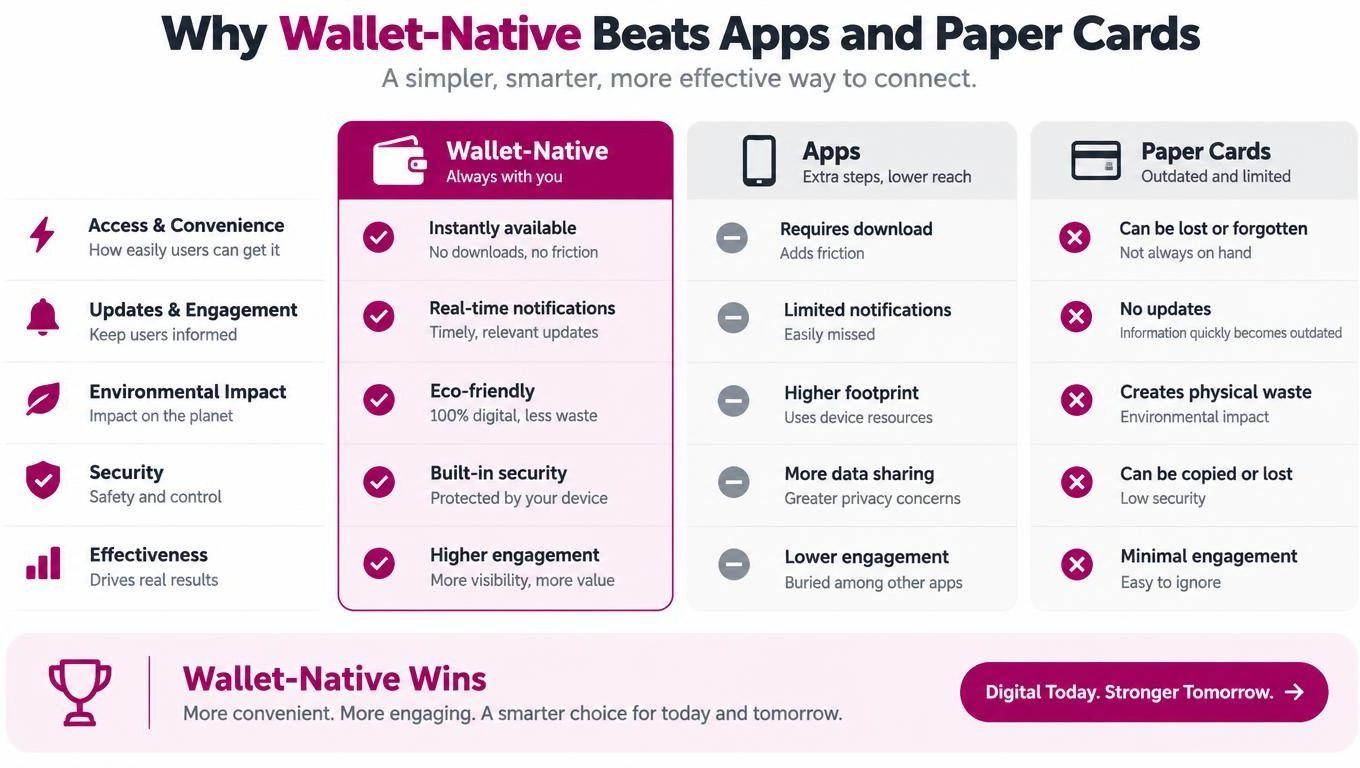
- Why Wallet-Native Beats Apps and Paper Cards
- What to Do When the Add Button Is Missing
- Troubleshooting and Your First-Week Rollout Checklist
Why the Add to Apple Wallet Button Might Be Missing
If the button is absent, start with the most important question: does the rewards program support Apple Wallet? Apple Wallet doesn't import every plastic card just because it has a barcode or membership number. The merchant or loyalty provider has to issue an eligible Wallet pass.
That pass is normally delivered through a website, email, text message, merchant app, QR code, AirDrop, or another supported channel. A barcode printed on a physical card isn't enough by itself. As Apple explains in its Wallet guidance, Wallet accepts eligible, supported passes, and users should contact the issuing merchant when Add to Apple Wallet doesn't appear.
The availability decision belongs to the program, not just to your iPhone model or country. A rewards scheme may work perfectly with a browser-based account and still have no Apple Wallet pass. Another may offer a Google Wallet card but not an Apple Wallet version.
Practical rule: Don't keep searching through Wallet settings for a button the merchant hasn't provided.
There are also three separate actions that often get confused:
- Joining the program: creating a member account or registering your phone number.
- Adding the pass: saving the digital membership credential in Apple Wallet.
- Syncing the balance: connecting the pass to the merchant's current points or stamp record.
You may complete one action without completing the others. If the button is missing, check the merchant's website, app, email inbox, text messages, receipts, and in-store signage. If none offers an Apple Wallet option, ask the merchant directly whether they issue an Apple Wallet pass. That answer determines whether the normal add flow can work.
What an Apple Wallet Rewards Card Actually Is
An Apple Wallet rewards card is a digital pass, not a bank card and not a standalone loyalty app. Merchants generally configure a loyalty pass as a storeCard type, with fields such as the member identifier, barcode or QR code, business name, branding, points or stamp balance, reward status, and redemption terms.
The pass acts as a credential at checkout. You open it in Wallet, and the cashier or scanner reads the barcode or QR code to identify your account. You can pay with cash, another bank card, or a different payment wallet because adding the rewards pass doesn't require Apple Pay enrollment or a bank-card transaction.
The merchant's system remains the source of truth for the loyalty account. When your points or stamps change, the issuer can send an updated version of the pass, allowing visible fields such as balances, offers, or expiration details to change without reissuing a physical card. Wallet installation alone doesn't create that synchronization. The business must maintain the member record and operate pass updates.
Apple introduced Passbook with iOS 6 in September 2012, then renamed it Apple Wallet with iOS 9 in September 2015. The platform's pass model has supported member identifiers, barcodes, and remotely updated balance fields since launch.
For a practical overview of how digital loyalty credentials fit into a customer journey, see how wallet-based loyalty works. The key point is simple: Apple Wallet stores the pass, but the merchant decides what the pass contains and whether it stays current.
Customer-Side Steps to Add a Rewards Card
The easiest route is a merchant-issued link. Open the website or email, tap Add to Apple Wallet, review the pass preview, and confirm Add. If the link opens in a browser instead of Wallet, use the original merchant link again in Safari, or ask the business for a fallback download or QR flow.
A QR code works similarly. Scan the code from a receipt, poster, counter display, or the merchant's app. The code should open the issuer's Wallet enrollment page or pass file, not merely display the member number. Follow the preview screen, then confirm the addition.
A merchant app may place the control inside its rewards area. Sign in, open the loyalty section, and look for the Apple Wallet button. Some businesses distribute a pass through AirDrop from a staff device, although this is less convenient for ongoing self-service enrollment than a web or email link.
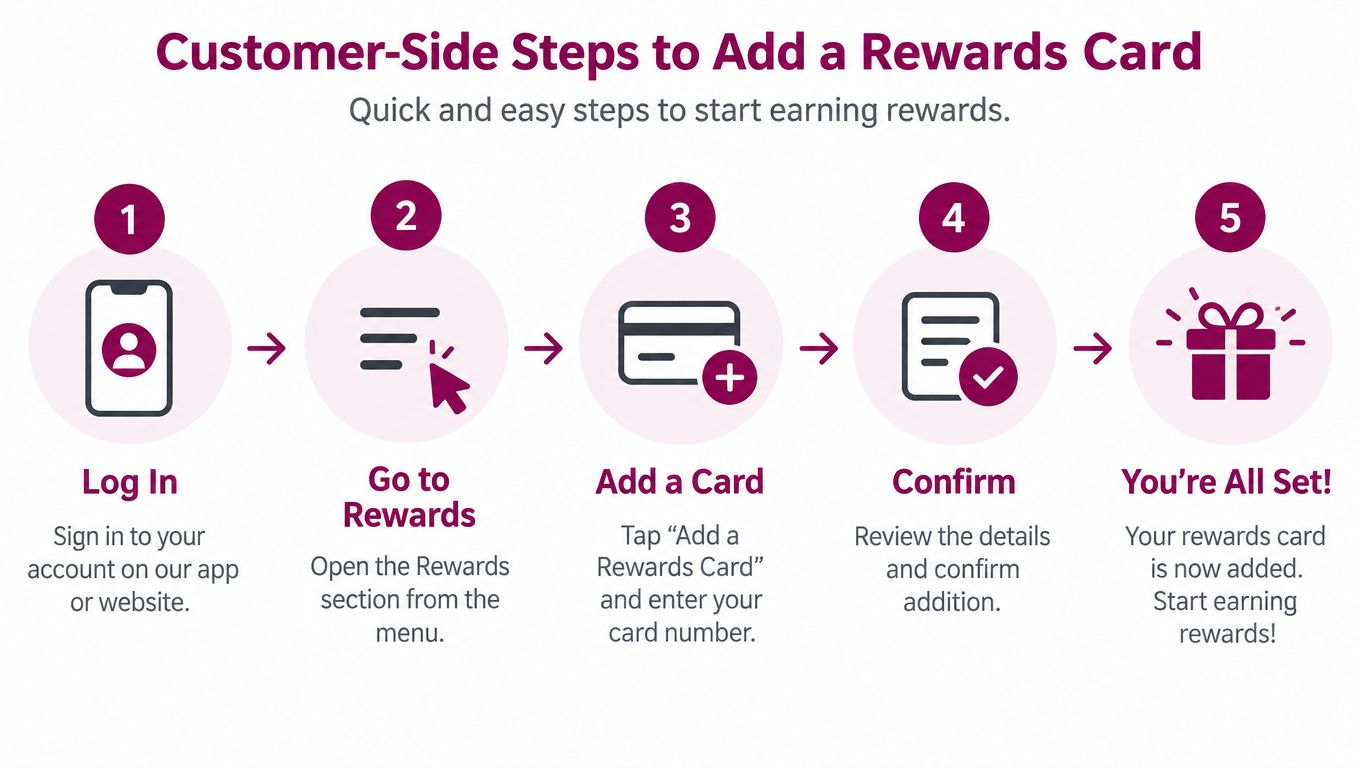
After you confirm Add, open Wallet and select the pass to check the barcode, member number, balance, and redemption information. An eligible loyalty pass is also automatically added to a paired Apple Watch. Apple's customer instructions for adding and managing passes explain that you can open Pass Details and enable Automatic Selection, which helps the card surface when you're at the business location.
The delivery file matters. A properly distributed pass uses the .pkpass format and the correct download response. If the browser displays a strange text file, downloads an archive, or does nothing, the issuer's distribution setup may be wrong. Try Safari, the original email or app link, and a browser fallback before assuming Wallet itself is broken.
At checkout, open the card before presenting your phone to the scanner. Staff should scan the visible barcode or QR code, then apply the purchase to the member record. The pass is there to identify you. It doesn't independently award points unless the merchant's loyalty system receives and processes that scan.
How Merchants Issue a Card That Customers Can Add
A customer-facing button is the final part of a merchant workflow, not the starting point. The business first needs a valid Apple Wallet pass, a loyalty record behind it, and a reliable way to distribute updates.
The production sequence is clear:
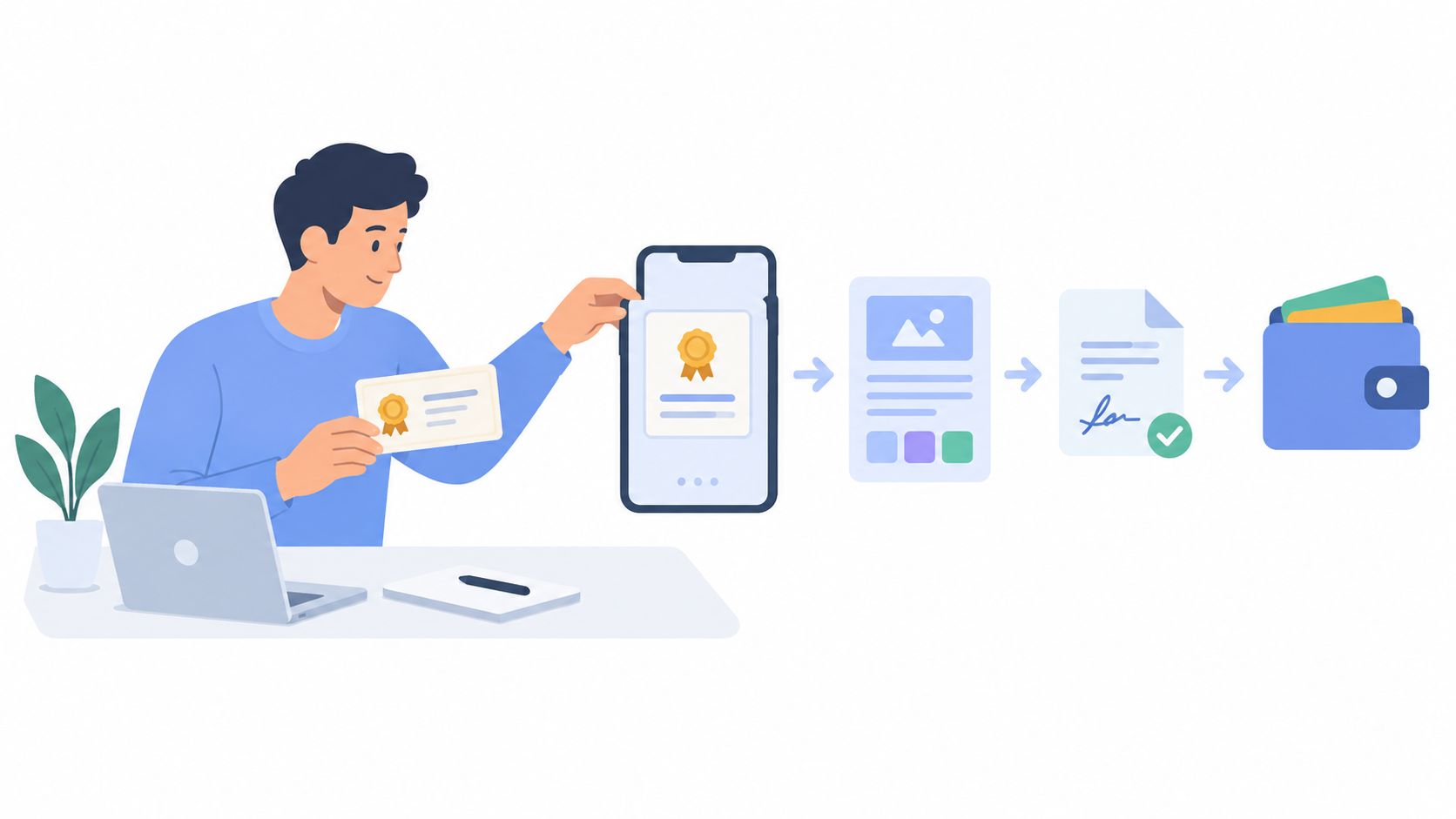
- Register the issuer: Create a Pass Type ID in the Apple Developer account and use a unique
passTypeIdentifierfor the pass. - Build the card: Configure the
storeCardpayload inpass.json, including the member identifier, barcode or QR code, visual assets, branding, and loyalty fields. - Sign the package: Package the assets as a
.pkpassfile and cryptographically sign it with an Apple-issued certificate tied to the issuer's developer account. - Distribute the pass: Deliver it through a website, email, app, QR code, or another customer communication channel.
- Maintain updates: Connect balance changes to pass updates so installed cards don't show stale points or stamps.
Apple's PassKit documentation confirms that a production pass must use PassKit, a unique passTypeIdentifier, and an Apple-issued certificate before it can be distributed as a .pkpass file.
Certificate management is where many small implementations become fragile. When the certificate expires, existing passes can continue functioning, but the issuer can't sign new passes or send updates. Revocation can create more serious failures. Store certificates as production secrets, monitor expiry well before renewal, and test the replacement process instead of treating renewal as an administrative afterthought.
For a café, salon, gym, or independent retailer, building this internally may be justified when the business already has engineering and loyalty infrastructure. Otherwise, a hosted system can handle certificate management, pass signing, issuance, and balance updates. The merchant still needs to test the operational details, including barcode readability, member lookup speed, duplicate accounts, offline checkout behavior, and prevention of repeated reward redemption. Tools such as wallet-ready loyalty features can support that model without requiring the business to maintain the signing workflow alone.
Why Wallet-Native Beats Apps and Paper Cards
A standalone app asks customers to make a larger commitment. They have to find it, install it, create or access an account, remember it at checkout, and keep it on the phone. A paper card has the opposite weakness: it's easy to hand out, but customers can lose it, leave it at home, or present a card that no longer reflects the current balance.
A Wallet pass sits between those extremes. The customer receives a persistent membership credential through a native phone feature, while the merchant retains control over the account and balance. The customer can show the pass at checkout even when payment happens through cash, another card, or a separate payment wallet.
The surrounding ecosystem provides useful context. One industry compilation estimates approximately 60.2 million Apple Pay users in the United States in 2024, compared with 55.8 million in 2023, a reported increase of 7.9 percent. The same Apple Pay usage compilation reports that 58 percent of U.S. Apple Pay users used the service for in-store or point-of-sale purchases during the preceding 12 months.
That data doesn't measure rewards-pass additions, so it shouldn't be treated as a guaranteed enrollment rate. It does show why a native-wallet enrollment option deserves a place in the merchant's acquisition flow. Customers already familiar with a phone-based wallet may accept a tap-to-add prompt more readily than a request to install another application.
The ecosystem is also relevant beyond the United States. The same source reports in-store adoption rates of 67 percent in the United Kingdom, 65 percent in Canada, 60 percent in the United States, and 59 percent in France. Those figures support a broad implementation principle, not a conversion promise: make the pass available where customers already manage credentials, then measure actual enrollment and checkout usage for the specific business.
For a clearer comparison of the operational trade-offs, see digital versus paper loyalty cards.
What to Do When the Add Button Is Missing
Treat a missing button as a diagnostic signal. Don't begin by deleting Wallet, changing payment settings, or assuming the barcode is defective. First confirm that the merchant runs an Apple Wallet-compatible loyalty program.
Search the places where the business normally communicates with customers:
- Website: Look in the account, rewards, profile, or membership area.
- Email: Search the welcome message and recent reward notifications for an Apple Wallet link.
- Merchant app: Open the loyalty card itself, not only the general account screen.
- Text messages: Check enrollment or reward messages for a Wallet option.
- Receipts and signage: Scan QR codes at the counter, on receipts, or on printed program materials.
- Wallet type: Confirm that the offer says Apple Wallet, not Google Wallet or a generic barcode page.
If the program is new and no Apple Wallet button appears anywhere, the merchant may not have issued a compatible pass yet. If the program has offered Wallet cards previously, a broken distribution path, expired certificate, or failed update service may be affecting new installations. Those are issuer-side problems, and reinstalling the customer's phone won't repair them.
Apple's guidance is direct: when Add to Apple Wallet doesn't appear, contact the issuing merchant. Ask a specific question: “Do you issue an Apple Wallet rewards pass, and where is the current enrollment link?” That wording separates support for a real pass from generic help with a barcode.
Also ask whether enrollment and balance syncing are separate. A merchant may let you join the rewards program through a form but provide no Wallet pass. Another may let you add a pass before you've completed the account registration. Seeing a card in Wallet doesn't prove that your account is enrolled or that the balance is connected to the merchant's live loyalty record.
Troubleshooting and Your First-Week Rollout Checklist
For customers, troubleshoot the delivery path before troubleshooting the entire device. Confirm that the merchant intended the file for Apple Wallet, then reopen the original link in Safari and download it again. If you received a file directly, check that it's a .pkpass file rather than a renamed archive or a page containing only a barcode.
A practical customer checklist looks like this:
- Check software compatibility: Make sure the iPhone is running a supported iOS version for the pass.
- Use the original source: Reopen the merchant email, app, website, or QR code instead of relying on an old saved download.
- Try another channel: If an email fails, request the web link or scan the merchant's QR code.
- Restart the phone: A restart can clear a stalled download or browser handoff.
- Test the pass itself: Once installed, open the barcode at the actual checkout scanner.
- Contact the issuer: If the button remains absent, ask the merchant to confirm Wallet support and resend the pass.
Merchants should test the entire journey during the first week, not just the pass preview. Create the program, generate a test pass, scan it on the checkout equipment staff use daily, change a balance, and verify that the installed pass reflects the update. Test enrollment from the website, email, QR code, and app if you plan to use more than one channel.
Checkout test: A pass that looks correct on an iPhone but fails at the scanner isn't ready for public distribution.
Have staff confirm that the member lookup works, duplicate accounts are handled sensibly, and rewards can't be redeemed repeatedly from the same transaction. Check Automatic Selection on supported staff or test devices, monitor the signing certificate before it becomes an emergency, and review the first completed enrollments before putting the link on every receipt, poster, and social profile.
The rollout should stay small until the complete loop works: join, add, scan, update, and redeem. That sequence exposes more real problems than a polished demo ever will.
Loyal Customer provides phone-based points and digital stamp programs with wallet-ready cards for Apple Wallet and Google Wallet, so customers can join through a business link and keep their reward pass on their device. Visit Loyal Customer to test a wallet-native rewards setup for your café, salon, restaurant, shop, or service business.